
This document will guide you through the usage of LTC light package. Here are showcases for different light type:
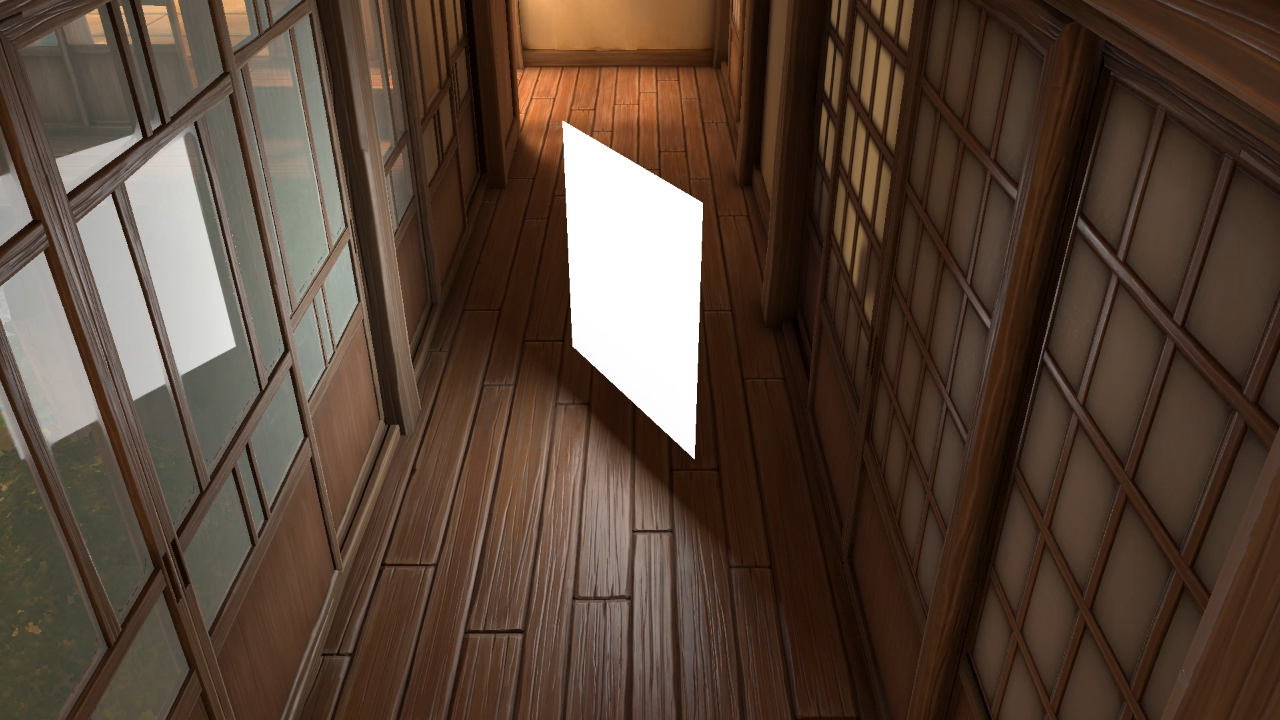
Polygon light:
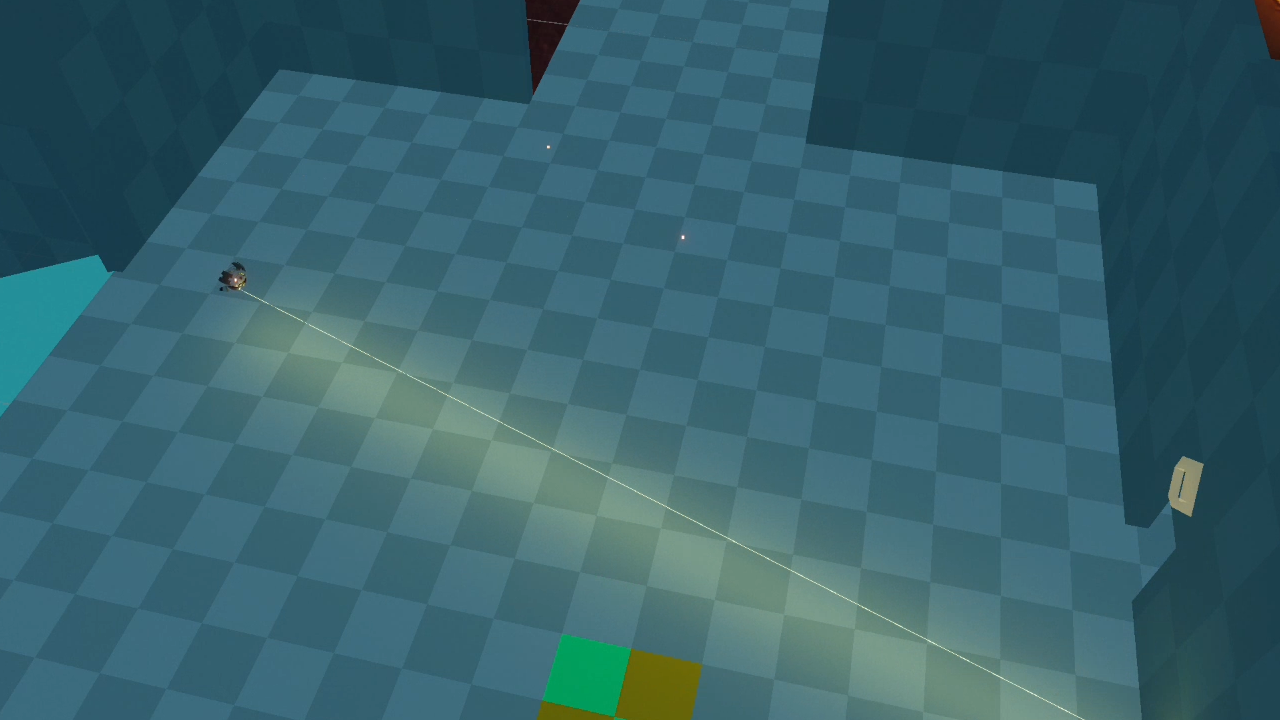
Linear light:
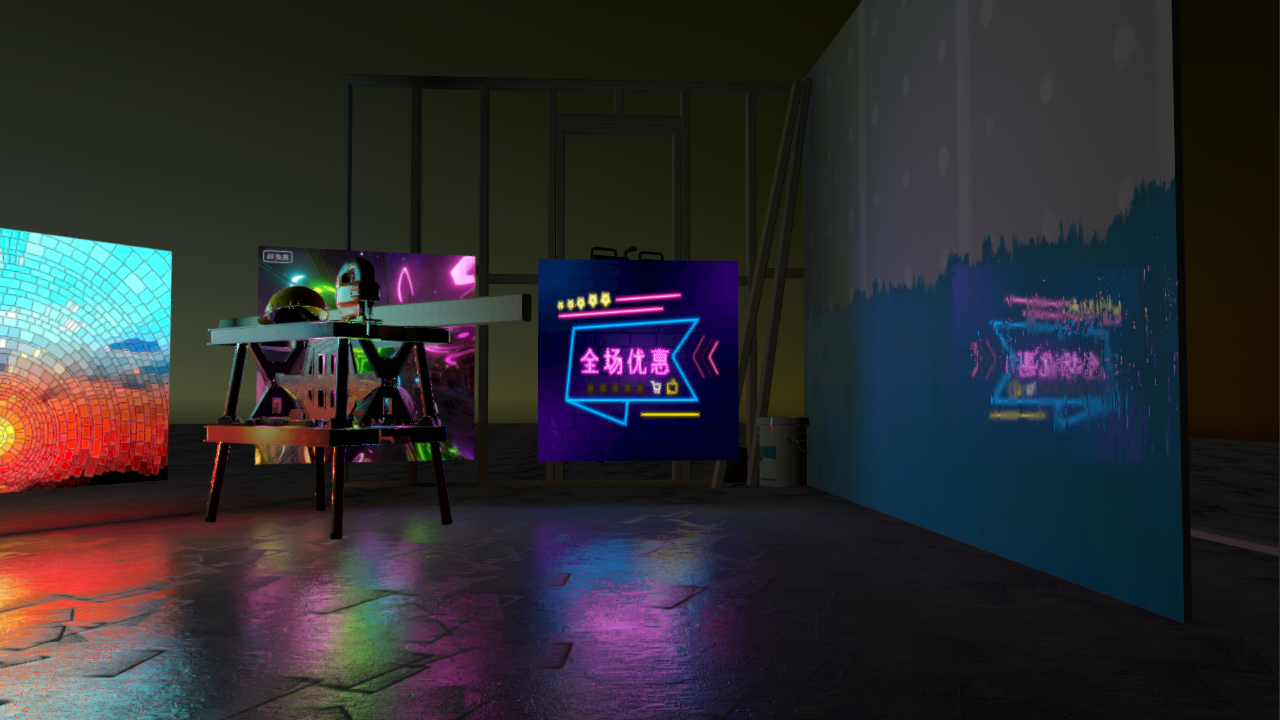
Textured light:
Samples
There are two samples in package, you can import them from PackageManager’s Sample tab and play around. If no Sample tab appears, you can also copy Realtime Area Light/Samples~ folder to Assets.
Shader Graph Sample
It demonstrates how to customize a shader graph to make it receives LTC lighting.
When enter play mode, the light spawner will spawn polygon lights or linear lights randomly at random place, and there is also a polygon light whose polygon vertices is changing, shows how to set polygon light shapes at runtime.
Shader Code Sample
It demonstrates how to customize a hand written shader to make it receives LTC lighting.
The interesting part is the lazer beam simulated by a linear light combined with physics raycasting, which rotates around in play mode, and it will be occluded by obstacles. Linear lights are well suited for effects like light saber, laser scope.
Basic Usage
In order to usage LTC lights, there must exist one and only one LTCLightManager instance in scene. You can use the Prefabs/LTCManager.prefab directly.
The next step is to make materials’ receiving LTC lighting:
For Shader Graph
There is no way for us to intercept the lighting process of Fragment block, but we can just add our additional LTC lighting to the emission channel, which will be added to the final lighting result.
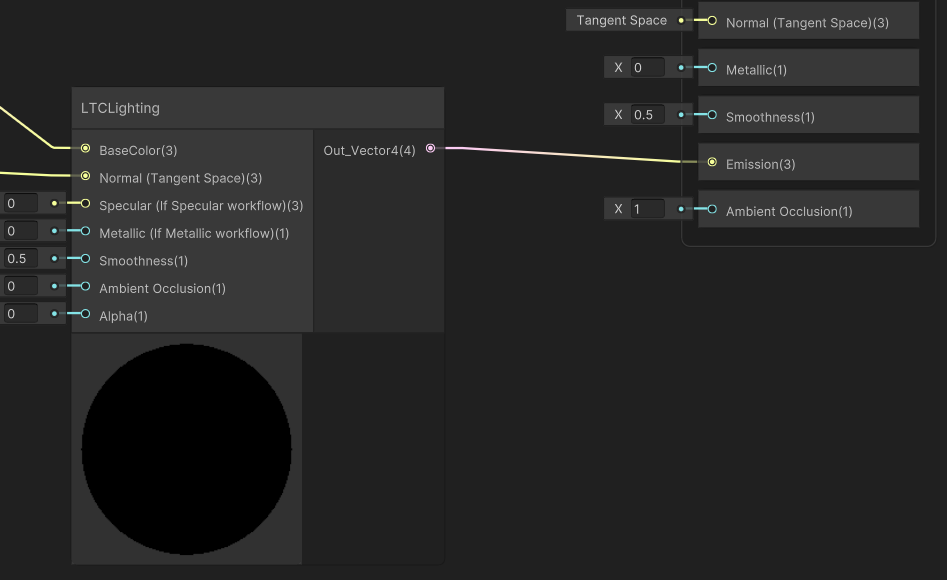
So what we need is add a LTCLighting node (inclued in this package) in shader graph, add input channels which is almost identical with Fragment block, and link output to Fragment block’s emission. You can just refer to the ShaderGraph sample.
For Shader Code
It’s also convenient to extend your hand written shaders to receive LTC lighting, there already exists helper functions to convert URP’s lit shader input to LTC lighting input, actually they are quite the same.
Use URP lit as an example, firstly we should include LTC shaders in LitForwardPass.hlsl:
#include "Packages/com.petabytes.ltclight/Shaders/LTC_URP.hlsl"
Then add LTC lighting after URP’s pbr calculation:
// For example in LitForwardPass.hlsl
InitializeBakedGIData(input, inputData);
half4 color = UniversalFragmentPBR(inputData, surfaceData);

// Add LTC lighting here
color.rgb += CalculateFragmentLTC(inputData, surfaceData);
That’s all!
The last step is adding LTC light instances in your scene.
LTC Lights
Currently we support polygon light, linear light and textured area light. More types will be added in the future such as bezier curve shaped area lights.
There are common attributes for both light types:
| Name | Description |
|---|---|
| Color | Light color in RGB |
| Intensity | light intensity |
| Range | The space range affected by light, it has different meaning for different light types, It will not be affected by transform scale, can be visualized when selected |
| Light Mode | To use diffuse lighting, specular lighting or both of them |
| Use World Position | Use object local space or world space for light shapes |
Attributes polygon light specific
| Name | Description |
|---|---|
| Range | The radius of bounding sphere, places outside the sphere will not be lighted |
| Double Sided | If the polygon light affect both sides |
| PolygonPoints | Assign customized polygon shapes, the polygon points should be 2D polygon, and centered at origin |
| Preset | Some preset polygon shapes like pentagon, hexagon, etc. It’s an editor only attribute for convenience, not exist in runtime |
Attributes linear light specific
| Name | Description |
|---|---|
| Range | The radius of a capsule shape, it determines the radius of caps and tube, places outside the capsule will not be lighted |
| Start Point | The start point of linear light, the center of start cap |
| End Point | The end point of linear light, the center of end cap |
| Radius | It is not related with Range, it’s the thickness of the linear light, the thicker the brighter |
Attributes textured light specific
| Name | Description |
|---|---|
| IsRealTime | If true, the texture prefiltering process will be executed each frame, which brings additional cost. Use it for content which is always changing, such as video textures |
| Texture | The texture of this light, it can be a static Texture2D, or some runtime generated RenderTexture |
| Width | The width of textured light |
| Height | The height of textured light |